Moving from an Excel dispatch sheet to HAICO: a 30-minute setup
Rewriting the Excel sheet every morning, recoloring cells every time the phone rings, hunting for the latest version. This guide walks through what it takes to move that sheet into HAICO, in order. With a small fleet you can be up and running in about 30 minutes. Signing up is free, and you don’t have to give up Excel on day one.
What to have ready
- Your vehicle list: plate, seats, and who usually drives each one. If it’s already in Excel, copy it across.
- Driver names (optional): you can dispatch with vehicles alone and add drivers later.
- This week’s and next week’s bookings: no need to enter past records. Start from what’s coming up.
The free plan covers up to 6 vehicles and 10 drivers, which is usually enough for an independent driver or a small fleet.
Step 1: Sign up about 2 min
Sign up from the HAICO home page with an email address or a Google account. Open HAICO on a computer and a “Getting started” checklist appears at the top of the screen (it opens by itself the first time); work through it and you’re set.
Step 2: Add vehicles and drivers about 10 min
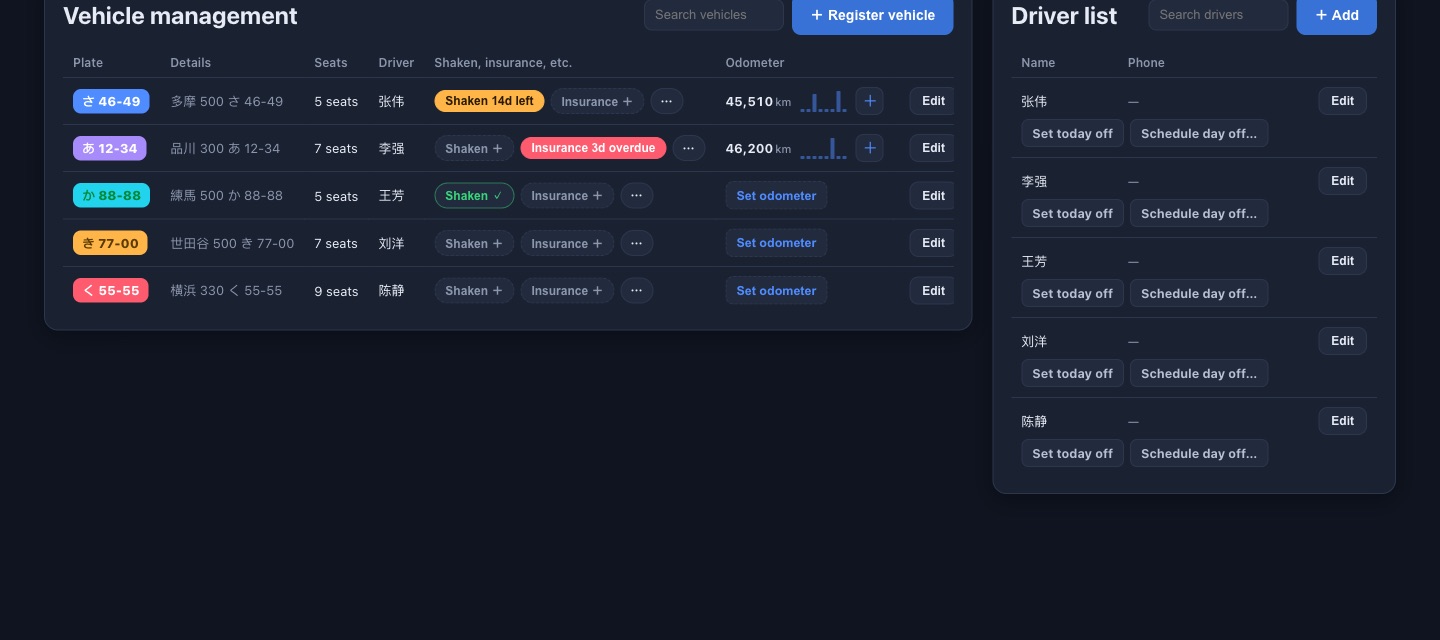
Open “Vehicles · Drivers” and press “+ Register vehicle”. Here’s where each column from your Excel sheet goes:
| Column in Excel | Where it goes in HAICO |
|---|---|
| Plate number | The vehicle’s region, class number, kana and number fields (region and class number are optional) |
| Seats | The vehicle’s “Seats” |
| Usual driver | The vehicle’s “Default assigned driver” (add the driver first, then choose them under “Edit” on the vehicle) |
| Driver list | “+ Add” in the driver list on the right |
Step 3: Enter this week’s orders about 10 min
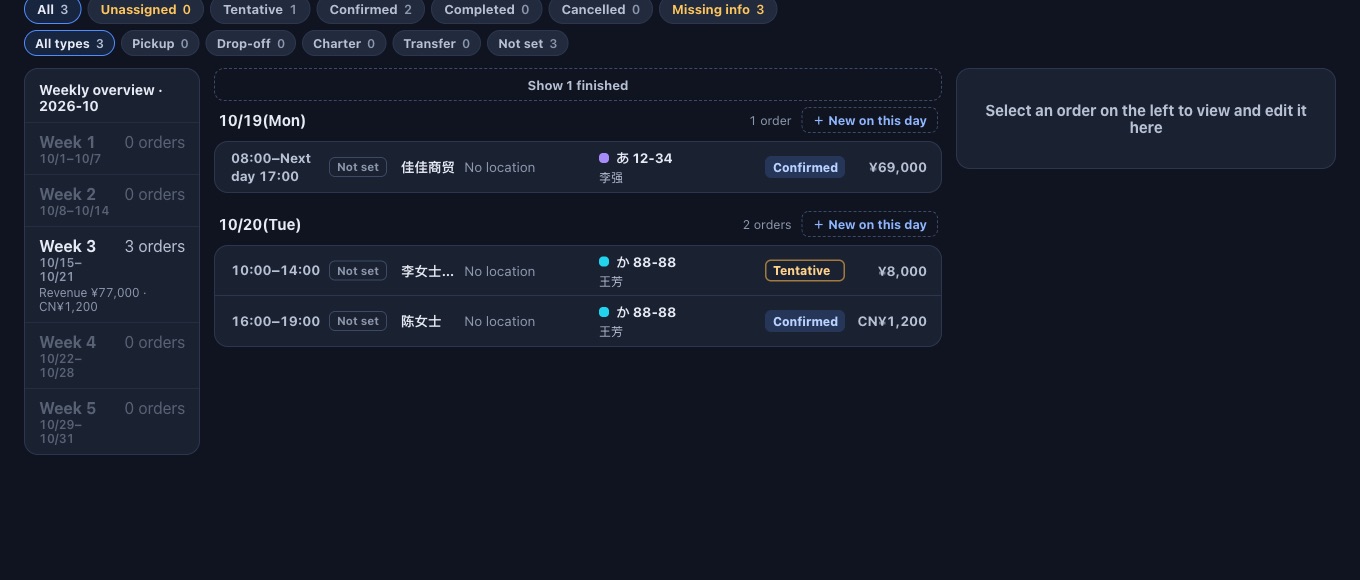
Open “Orders” and press “+ New order” at the top right. Fill in the date and time, the customer, the type (airport pickup, airport drop-off, charter or transfer) and the fare. Flight numbers, pickup and drop-off points, passengers and luggage can wait; “Missing info” flags orders still missing a flight number, a driver, or a pickup or drop-off point.
Don’t know which vehicle yet? Save without one and the order goes to “Unassigned”, ready to dispatch later.
Step 4: Dispatch on the board about 5 min
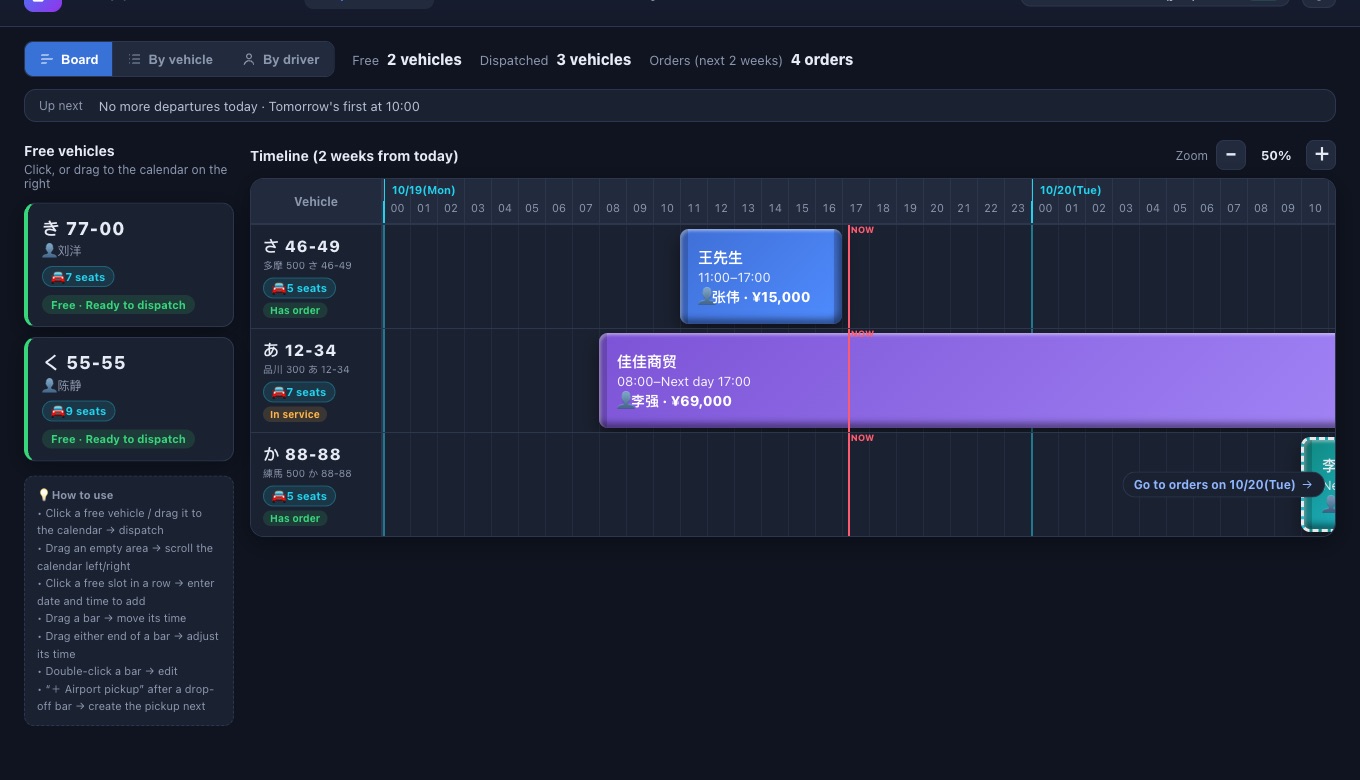
Open the “Dispatch board”, press an order under “Unassigned” at the top, then press a green vehicle, and it’s dispatched. You can also create new bookings right on the board: drag a vehicle from “Free vehicles” on the left onto the timeline to start a new order on that vehicle.
- Times changed? Drag the bar to move it, or drag either end to change the start or finish. Overnight and multi-day jobs work the same way.
- Overlapping jobs on the same vehicle won’t go in, so nothing gets double-booked.
- To see each driver’s day, switch to “By driver”.
What a normal day looks like
| When | What you do in HAICO |
|---|---|
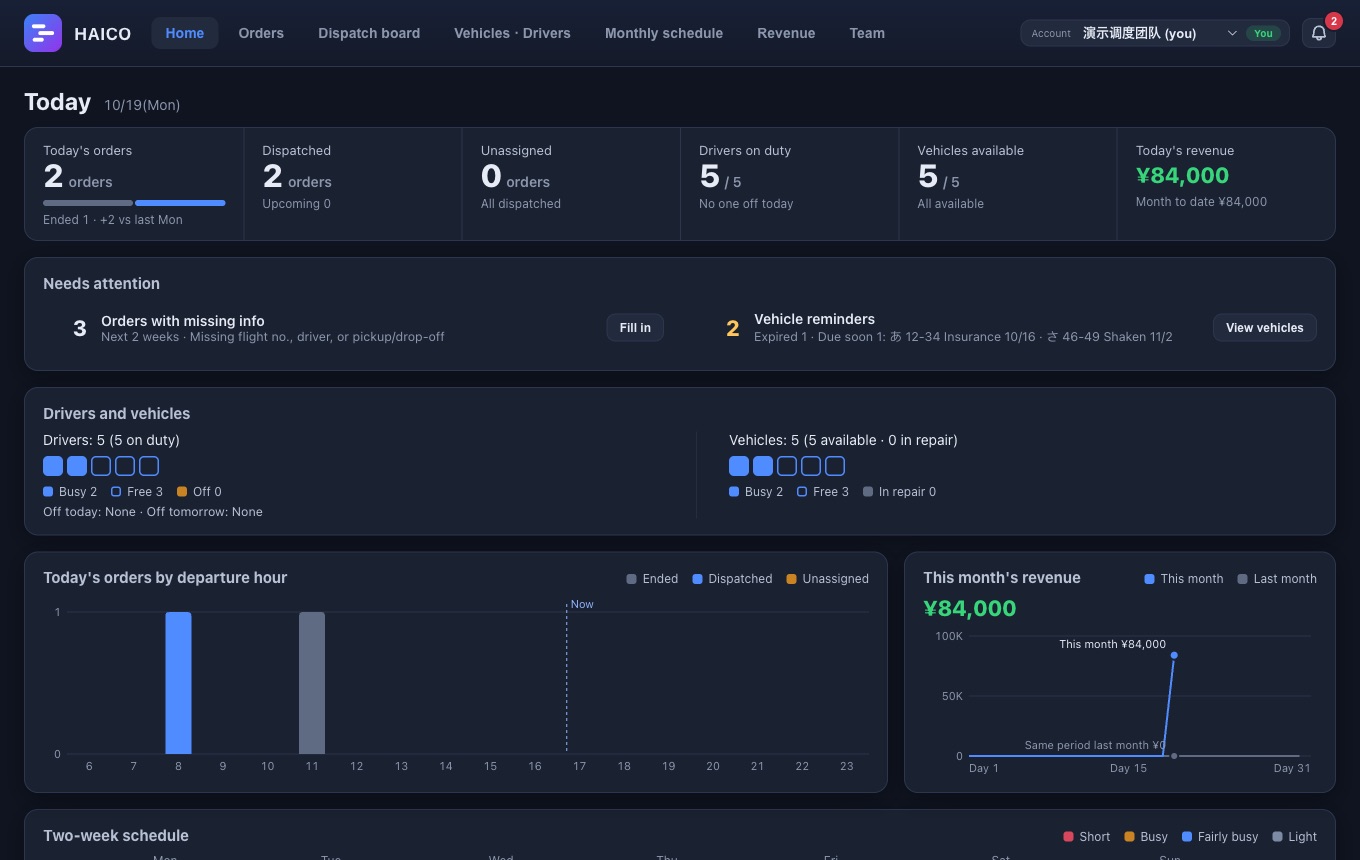
| Morning | Open “Home” for today’s orders, anything still unassigned, drivers on a day off, and vehicles in repair. |
| A booking comes in | Create it in “Orders”, with or without a vehicle. “Suggested dispatch” can assign two weeks of unassigned orders in one goPro. |
| A driver needs a day off | Choose “Schedule day off…” in the driver list. Any orders left on those days are flagged so you can hand them to another driver. |
| Sending a driver their jobs | An admin creates a driver link under “Team” → “External share links” and sends it. Customer names and fares stay out of the linkPro. |
| Month end | “Revenue” totals your orders automatically, separately for each currency. Admins can export a CSV when the accountant asksPro. |
You don’t have to drop Excel right away
For the first week or two, run Excel and HAICO side by side. Enter new bookings in HAICO first and check them against the sheet. Once the two match, retire the spreadsheet.
Common questions about switching
- Do I need to enter past records?
- No. Start with upcoming orders. Revenue only counts orders entered in HAICO, so if you want figures for a given month, enter that month’s orders.
- Can several people use it?
- Yes (Pro). Invite members from “Team” and turn permissions such as “Edit dispatch”, “View amounts” and “Manage vehicles” on or off for each person.
- Does it work on a phone?
- Yes. Check today’s orders and free vehicles from your phone while you’re out.
- How far does the free plan go?
- Up to 6 vehicles and 10 drivers. The dispatch board, orders, monthly schedule and revenue are all free. Upgrade to Pro when you need more vehicles or want to work as a team.
Running a small taxi or transfer business? See also 10 common dispatch headaches for small taxi and transfer operators.
Move straight over from your Excel dispatch sheet.
Try it free